
Below is a guide on setting up your authenticator with your computer:
Step 1: Click NEXT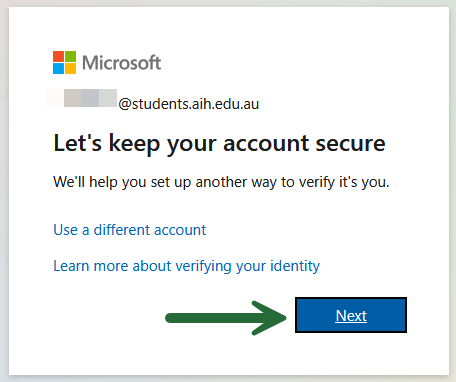
Step 2: ensure that you are in the correct tenancy, the "students.aih.edu.au" text will be displayed in the top left corner. Click NEXT
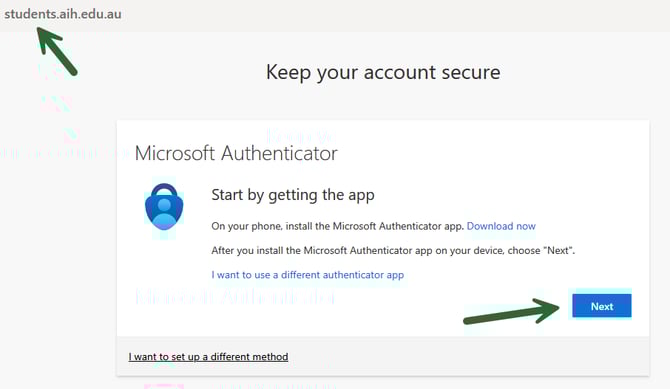
Ensure that you have the Microsoft Authenticator App already installed on your smartphone.
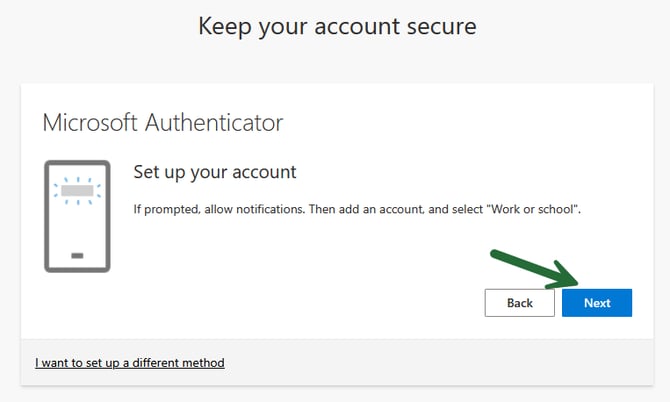
Step 3: Click NEXT again
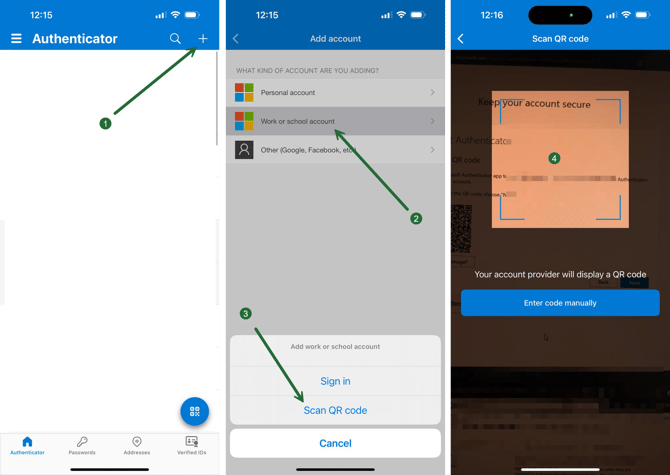
Step 4: Open the Microsoft Authentication App > click on the plus (+) sig n > choose Work or school account > Scan QR code > point your phone to scan the QR code from your computer screen.
Step 5: Once you have scanned the QR code, click NEXT . The portal will ask you to verify your mobile with your account. You should see a pop-up with a random 2-digit number on your phone. On your phone, please type the same number and press Yes
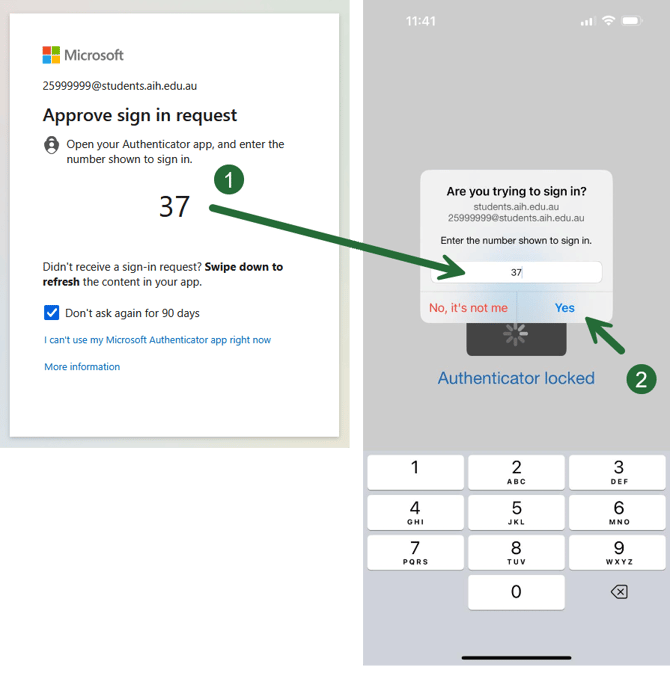
Step 6 : its all done, you Microsoft account is now active.